

Are you ready to master one of the most powerful tools in Adobe Illustrator? Learning how to draw a line with the Pen Tool can unlock endless creative possibilities for your designs.
Whether you’re a beginner or looking to sharpen your skills, this simple technique will give you precision and control like never before. Stick with me, and by the end of this article, you’ll be confident in creating smooth, perfect lines that bring your ideas to life.
Let’s dive in and make your artwork stand out!

Credit: www.reddit.com
Getting Started With The Pen Tool
The Pen Tool in Illustrator lets you draw precise lines and shapes. It is a key tool for creating vector graphics. Learning to use it well helps you make clean designs.
This guide shows you how to find the Pen Tool and prepare your workspace. These steps make drawing lines easier and more efficient.
Locating The Pen Tool
The Pen Tool looks like a fountain pen tip icon. You can find it in the Tools panel on the left side of Illustrator. If you do not see it, you can press the letter Pon your keyboard to select it quickly.
- Open Illustrator and look for the Tools panel.
- Find the Pen Tool icon (a pen tip).
- Click the icon to activate the tool.
- Press
Pas a shortcut to select it.
Setting Up Your Workspace
Setting up your workspace helps you work faster and with fewer mistakes. Make sure your panels and guides are visible for better control.
| Workspace Element | Purpose |
| Tools Panel | Contains the Pen Tool and other drawing tools |
| Control Panel | Shows options for the selected tool |
| Rulers and Guides | Help align your drawing accurately |
| Layers Panel | Organize your artwork in layers |

Credit: uxplanet.org
Basic Line Drawing Techniques
The Pen Tool in Illustrator helps you draw precise lines. It creates paths using anchor points and handles.
Learning to draw basic lines is key for creating shapes and designs in Illustrator.
Creating Straight Lines
Click once on the artboard to place the first anchor point. Click again to place the second point.
The line between these points is straight. Repeat clicks to add more straight segments.
- Click once to start the line
- Click another spot to create a straight segment
- Keep clicking to add connected straight lines
- Press Enter or Escape to finish the path
Adjusting Anchor Points
Use the Direct Selection Tool to select anchor points on your path. Drag points to new positions.
You can also move handles to change the curve direction and length for smooth lines.
- Select anchor points with the white arrow tool
- Drag anchor points to adjust line shape
- Move handles to change curves
- Delete points to simplify lines
Refining Your Line
After drawing a line with the Pen Tool in Illustrator, refining it improves its shape and flow. This process helps you create smooth and precise lines.
You can adjust your line by selecting points and curves to make the design look cleaner and more professional.
Using The Direct Selection Tool
The Direct Selection Tool lets you select and move anchor points on your line. This tool helps you change the line’s shape exactly where you want.
- Click on the Direct Selection Tool in the toolbar or press the shortcut key
A. - Click on an anchor point to select it.
- Drag the anchor point to a new position to adjust the line.
- Hold Shift while dragging to keep the movement straight.
- Click and drag the handles attached to anchor points to change curves.
Modifying Line Curves
Adjusting curves is key to making your line look smooth and natural. You can change the direction and length of the handles on anchor points.
| Action | Result |
|---|---|
| Drag handle away from anchor point | Creates a wider curve |
| Drag handle closer to anchor point | Makes the curve tighter |
| Move handle in a new direction | Changes curve direction |
| Hold Alt (Option) and drag handle | Adjusts one handle without moving the other |
Adding Stroke Styles
When you draw a line with the Pen Tool in Illustrator, you can change how the line looks. Stroke styles help you change the line’s thickness, color, and effects.
Adding stroke styles makes your lines more visible and attractive. You can customize each line to fit your design needs.
Changing Stroke Weight
Stroke weight is the thickness of your line. You can make lines thicker or thinner using the Stroke panel.
Select your path with the Pen Tool, then open the Stroke panel. Use the weight box to enter a value or drag the slider to adjust thickness.
- Thin lines work well for delicate designs
- Thick lines stand out and create bold shapes
- Try different weights to see what fits best
Applying Stroke Colors And Effects
You can change the stroke color to make your lines match your artwork. Use solid colors, gradients, or patterns for different looks.
Effects like dashed lines or variable widths add style. These options are available in the Stroke panel under the dash and profile settings.
- Pick stroke colors from the color picker or swatches
- Use dashed lines for creative, broken strokes
- Apply variable width profiles to change stroke thickness along the line
- Experiment with opacity for softer stroke effects
Common Mistakes And Fixes
Drawing a line with the Pen Tool in Illustrator can be tricky at first. Many users face common problems that affect their work.
This guide covers frequent mistakes and shows easy fixes to improve your drawing skills.
Handling Unwanted Curves
Unwanted curves appear when the handles of anchor points are not controlled well. This makes lines look wavy instead of straight.
- Click to create anchor points without dragging to avoid curves.
- If a curve appears, use the Direct Selection Tool to adjust handles.
- Hold the Alt key and click the anchor point to reset handles.
- Practice clicking points in a straight line for clean edges.
Correcting Anchor Point Placement
Placing anchor points in the wrong spots causes awkward lines and shapes. Fixing this improves your drawing’s flow.
| Common Mistake | Fix |
| Placing points too far apart | Add more anchor points for better control |
| Points not aligned properly | Use Smart Guides to snap points accurately |
| Extra points causing rough edges | Remove unnecessary points with the Delete Anchor Point Tool |
| Overlapping points creating confusion | Zoom in and reposition points carefully |
Tips For Smooth Lines
Drawing smooth lines in Illustrator is easy with the pen tool. Learn simple tips to improve your line quality.
Practice and shortcuts can make your lines look professional and clean.
Using Keyboard Shortcuts
Keyboard shortcuts save time and help keep your lines smooth. They allow quick tool changes without disrupting your flow.
- V– Selection tool
- P– Pen tool
- Spacebar– Hand tool
- Z– Zoom tool
Practicing With Simple Shapes
Start by drawing simple shapes. This helps understand how the pen tool works. Practice curves and angles to improve your skills.
| Shape | Benefit |
| Circle | Learn smooth curves |
| Square | Focus on straight lines |
| Triangle | Practice sharp corners |

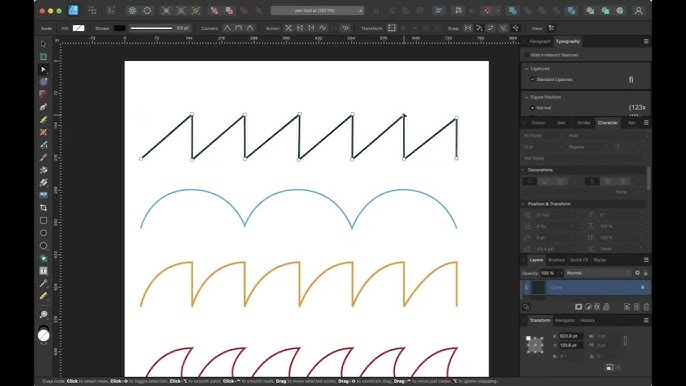
Credit: www.youtube.com
Frequently Asked Questions
How Do I Start Drawing A Line With The Pen Tool?
To start drawing a line, select the Pen Tool and click on your canvas. This creates the first anchor point. Then click another spot to create a straight line segment between points.
Can I Adjust Line Curves Using The Pen Tool?
Yes, click and drag to create curved anchor points. Adjust handles to shape the curve. This allows precise control over line smoothness.
How Do I Close A Path With The Pen Tool?
To close a path, click back on the first anchor point. This connects the last point to the first, completing the shape or line.
What Are Anchor Points In Illustrator’s Pen Tool?
Anchor points define the line’s shape. Straight segments connect points directly. Curved segments use handles to control bends and curves.
Conclusion
Drawing a line with the Pen Tool in Illustrator is simple with practice. Follow the steps carefully and take your time. You can create straight or curved lines easily. Experiment with different anchor points to see what works best. Keep practicing to improve your skills each day.
Soon, drawing lines will feel natural and quick. This basic skill opens many creative possibilities. Try it out and enjoy the process of learning Illustrator.