


Are you struggling to find the Ellipse Tool in Photoshop? You’re not alone.
Many users get stuck trying to locate this simple but powerful feature. Knowing exactly where to find and how to use the Ellipse Tool can save you time and make your designs look sharper. You’ll discover step-by-step instructions that make it easy to access the Ellipse Tool and start creating perfect shapes right away.
Keep reading, and you’ll unlock a quick trick that will boost your Photoshop skills instantly.

Credit: fallontravels.com
Locate The Shape Tools
The Ellipse Tool is part of Photoshop’s Shape Tools. These tools help you draw shapes like circles, rectangles, and more.
Finding the Ellipse Tool starts with knowing where the Shape Tools are in Photoshop’s interface.
Access The Toolbar
The Toolbar is on the left side of the Photoshop screen. It shows many tool icons you can use for editing.
Look for a small rectangle or shape icon in the Toolbar. This icon represents the Shape Tools group.
Identify The Shape Tool Group
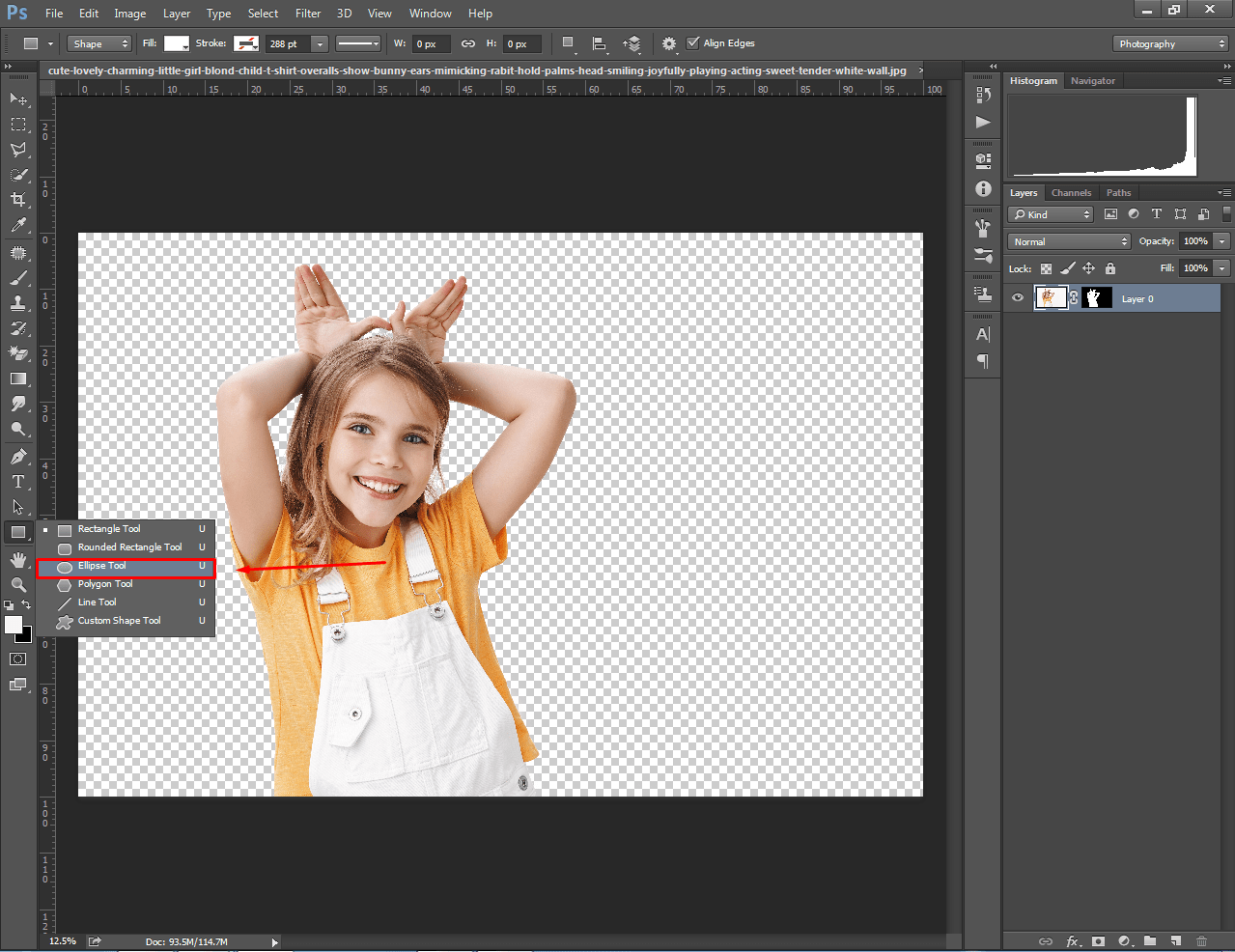
Click and hold the Shape Tool icon in the Toolbar. A menu will appear with different shape options.
- Rectangle Tool
- Ellipse Tool
- Polygon Tool
- Line Tool
- Custom Shape Tool
Select the Ellipse Tool from this list to start drawing circles and ovals on your canvas.
Credit: clippingway.com
Select The Ellipse Tool
The Ellipse Tool in Photoshop helps you draw perfect circles and ovals. It is part of the Shape tools group. You can find it in the toolbar on the left side of the screen.
Knowing how to select the Ellipse Tool quickly saves time. This guide shows simple ways to find and use it.
Right-click To Reveal Options
The Ellipse Tool is hidden under the Shape tools icon. To see it, right-click on the Shape tools icon in the toolbar. This action will open a small menu with more tool choices.
- Locate the Shape tools icon (usually a rectangle or rounded shape).
- Right-click (or click and hold) on this icon.
- A menu will appear showing the Rectangle Tool, Ellipse Tool, Polygon Tool, and others.
- Click on the Ellipse Tool to select it.
Choose The Ellipse Tool
After selecting the Ellipse Tool, you can draw shapes by clicking and dragging on the canvas. Hold the Shift key while dragging to draw a perfect circle.
| Action | Result |
| Right-click Shape tools icon | Show all shape tool options |
| Click Ellipse Tool | Set Ellipse Tool as active tool |
| Drag on canvas | Draw an ellipse shape |
| Hold Shift + Drag | Draw a perfect circle |
Customize Ellipse Settings
The Ellipse Tool in Photoshop helps you create perfect circles and ovals. You can change its look by adjusting fill and stroke colors. You can also change the size and position of your ellipse easily.
This guide shows you how to customize these settings to fit your design needs.
Adjust Fill And Stroke
The fill is the inside color of the ellipse. The stroke is the outline color and width. You can change both in the toolbar or properties panel.
- Click the Fill box to choose a new color or make it transparent.
- Click the Stroke box to pick a color for the outline.
- Use the stroke width option to make the outline thicker or thinner.
- Try different stroke styles like dashed or dotted for special effects.
Modify Size And Position
You can change the ellipse’s size and where it sits on your canvas. Use the properties panel or transform controls for this.
| Action | How to Do It | Effect |
| Resize | Drag the corner handles or enter width and height values. | Change ellipse size exactly or freely. |
| Move | Click and drag the shape or enter X and Y coordinates. | Place ellipse where you want on the canvas. |
| Constrain Proportions | Hold Shift while resizing. | Keep circle shape without distortion. |
Draw An Ellipse On Canvas
The Ellipse Tool in Photoshop helps you draw smooth oval shapes. You can place ellipses anywhere on your canvas.
This tool is useful for creating circles, ovals, and other rounded shapes in your designs.
Click And Drag To Create
Select the Ellipse Tool from the toolbar. Click on the canvas, hold the mouse button, and drag to draw an ellipse.
- Click to set the starting point.
- Drag to change the size of the ellipse.
- Release the mouse button to finish drawing.
Use Shift For Perfect Circles
Hold the Shift key while dragging to draw a perfect circle instead of an ellipse. This keeps the height and width equal.
| Action | Result |
| Drag without Shift | Ellipse shape |
| Drag with Shift held | Perfect circle |
Troubleshoot Common Issues
Sometimes the Ellipse Tool in Photoshop can be hard to find or use. This guide helps you fix common problems. You can get back to your design work fast.
We will cover two main issues: when the Ellipse Tool is missing and when the shape layer does not appear.
Ellipse Tool Missing
If you cannot find the Ellipse Tool, it might be hidden under the Shape Tool group. Photoshop groups shape tools together.
- Look for the Rectangle Tool icon on the toolbar.
- Click and hold the Rectangle Tool icon to open the fly-out menu.
- Select the Ellipse Tool from the list.
- If you still do not see it, check if your toolbar is customized.
- Go to Window > Tools and reset the toolbar if needed.
Shape Layer Not Appearing
When you draw with the Ellipse Tool but no shape layer shows up, check these settings. The shape might be hidden or not created properly.
| Issue | Cause | Fix |
| No new layer | Shape Tool set to Path or Pixels | Set tool mode to Shape in the top options bar |
| Shape hidden | Layer visibility turned off | Turn on the eye icon next to the layer |
| Shape behind other layers | Layer order issue | Drag shape layer above other layers |
| Fill or stroke set to none | No visible color | Choose a fill or stroke color in options bar |
| Photoshop glitch | Temporary bug | Restart Photoshop or reset preferences |

Credit: pathedits.com
Frequently Asked Questions
Where Is The Ellipse Tool Located In Photoshop?
The Ellipse Tool is found under the Shape tools in the toolbar. Click and hold the Rectangle Tool icon to reveal it. Select Ellipse Tool to draw ellipses or circles easily.
How Do I Access The Ellipse Tool Quickly?
Press the shortcut key “U” repeatedly to cycle through shape tools. Stop when the Ellipse Tool appears. This speeds up accessing the tool while working.
Can I Customize The Ellipse Tool Settings?
Yes, you can adjust fill, stroke, and shape options in the top menu. This allows creating ellipses with different colors, sizes, and styles.
How To Draw A Perfect Circle With The Ellipse Tool?
Hold down the Shift key while dragging the Ellipse Tool. This constrains proportions and creates a perfect circle instead of an oval.
Conclusion
Finding the Ellipse Tool in Photoshop is simple and quick. Just look for the shape tools on the left toolbar. Click and hold the Rectangle Tool to see more options. Select the Ellipse Tool from the list. Practice drawing circles and ovals to get comfortable.
This tool helps create clean and smooth shapes easily. Keep exploring Photoshop to improve your skills step by step. Soon, you will use the Ellipse Tool without any trouble.