

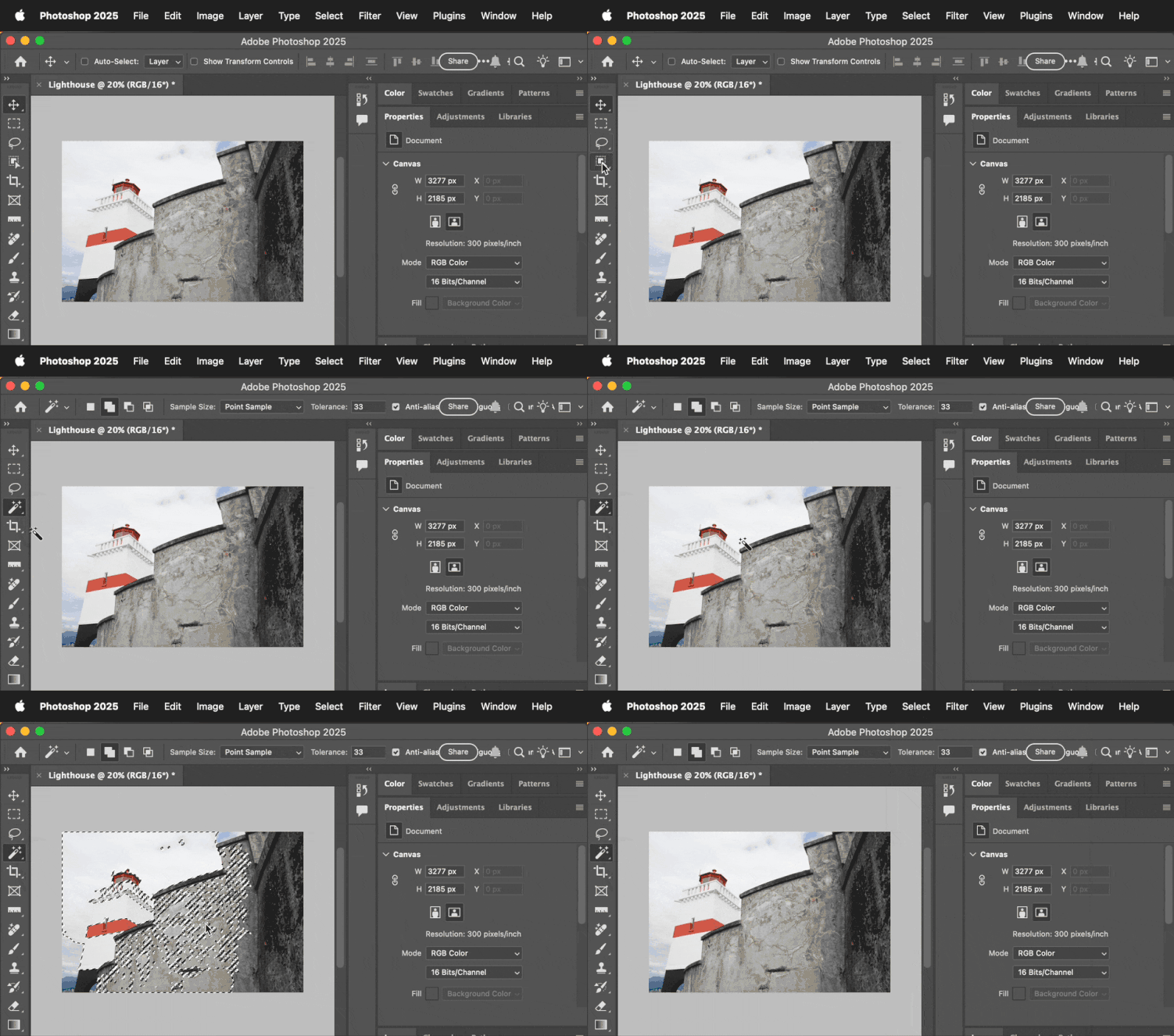
Are you struggling to quickly select parts of an image in Photoshop? Finding the Magic Wand Tool can save you a lot of time and effort.
This simple yet powerful tool lets you easily pick out areas with just one click. You’ll discover exactly where to find the Magic Wand Tool and how to use it like a pro. Keep reading, and you’ll unlock a faster way to edit your photos and designs!
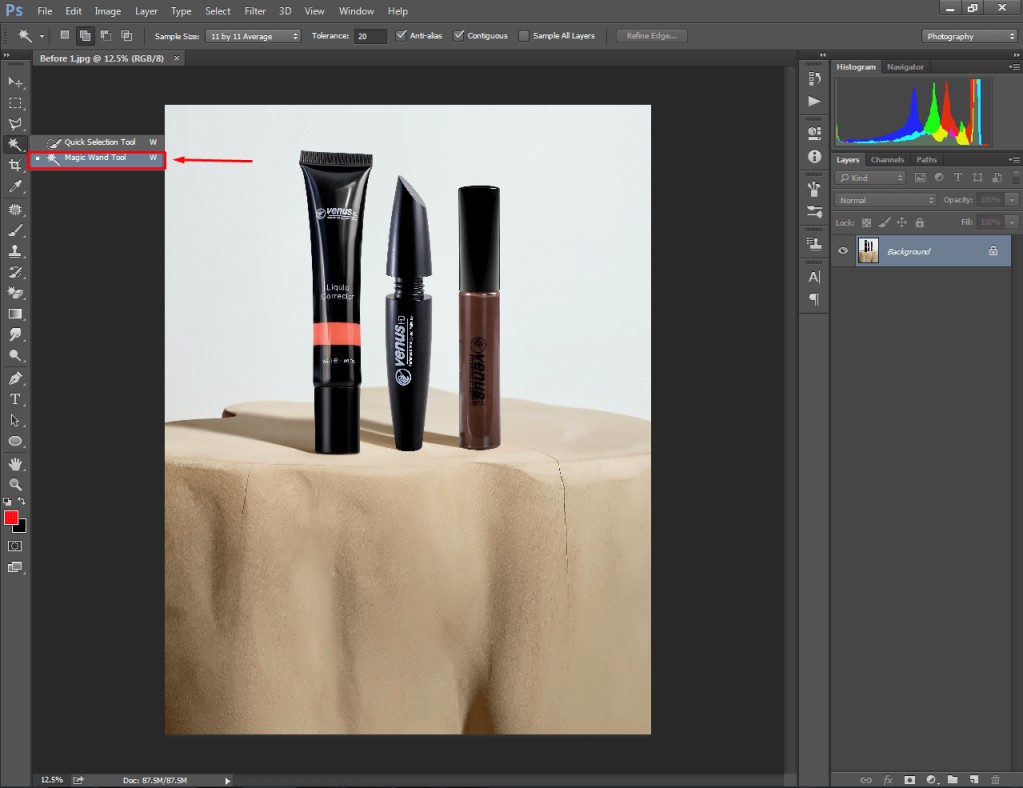
Credit: clippingway.com
Locate The Toolbar
The Magic Wand Tool is a popular selection tool in Photoshop. To use it, you first need to find the toolbar.
The toolbar holds many tools for editing images. Knowing where it is helps you work faster.
Where To Find The Toolbar
The toolbar usually appears on the left side of the Photoshop window. It is a vertical strip with icons.
If you do not see the toolbar, it might be hidden. You can show it by going to the “Window” menu and selecting “Tools”.
Identifying The Magic Wand Tool Icon
The Magic Wand Tool icon looks like a wand with sparkles at the tip. It is grouped with the Quick Selection Tool.
- Look for a wand icon in the toolbar.
- If you see a brush or selection tool instead, click and hold it.
- A small menu will open showing hidden tools.
- Select the Magic Wand Tool from that menu.
Using Keyboard Shortcut To Select The Tool
You can also press the letter “W” on your keyboard. This shortcut switches to the Magic Wand Tool or Quick Selection Tool.
Shift + Wto toggle between the Magic Wand and Quick Selection tools when the toolbar is active. 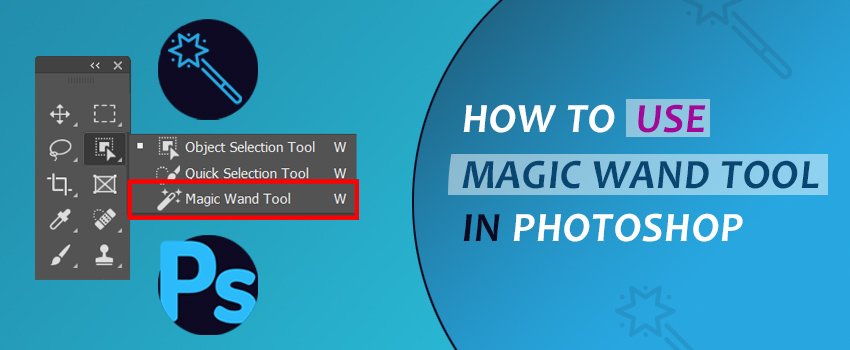
Credit: clippingway.com
Identify The Quick Selection Tool
The Quick Selection Tool in Photoshop helps you select parts of an image quickly. It works by detecting edges as you drag the cursor over areas.
Finding this tool is important for editing photos with ease. It is often confused with the Magic Wand Tool because both select parts of an image.
Where To Find The Quick Selection Tool
You can find the Quick Selection Tool in the toolbar on the left side of Photoshop’s interface. It shares a spot with the Magic Wand Tool.
Look for an icon that looks like a brush with a dotted circle. If you see the Magic Wand icon, click and hold it to open a small menu. The Quick Selection Tool will be one of the options.
How To Switch Between Tools
Photoshop groups the Quick Selection Tool and Magic Wand Tool together. You can switch between them by right-clicking or long-pressing the tool icon.
- Click the tool icon once to select the visible tool.
- Right-click or press and hold the icon to see all related tools.
- Choose the Quick Selection Tool from the list.
Differences Between Quick Selection And Magic Wand Tools
| Feature | Quick Selection Tool | Magic Wand Tool |
|---|---|---|
| Selection Method | Brush-based edge detection | Selects pixels by color similarity |
| Use | Drag over areas to select | Click to select areas |
| Best For | Complex shapes and edges | Simple color areas |
Tips For Using The Quick Selection Tool
Here are some tips to help you use the Quick Selection Tool better:
- Adjust the brush size for finer control.
- Hold the Alt key (Option on Mac) to subtract from the selection.
- Use the Shift key to add to the selection.
- Zoom in for more precise selections.
Access The Magic Wand Tool
The Magic Wand Tool helps you select areas in Photoshop easily. It picks pixels with similar colors.
You can find the Magic Wand Tool in the toolbar. It is grouped with other selection tools.
Using The Dropdown Menu
Look for the Quick Selection Tool in the toolbar. The Magic Wand Tool is hidden under it.
Click and hold the Quick Selection Tool icon. A dropdown menu will appear with more options.
- Find the Magic Wand Tool in the list
- Click it to select
- The icon will change to the Magic Wand Tool
Keyboard Shortcut
Press the letter W on your keyboard. This shortcut switches to the Magic Wand Tool.
If the Quick Selection Tool is active, press Shift + W to cycle through tools. Stop when the Magic Wand Tool appears.
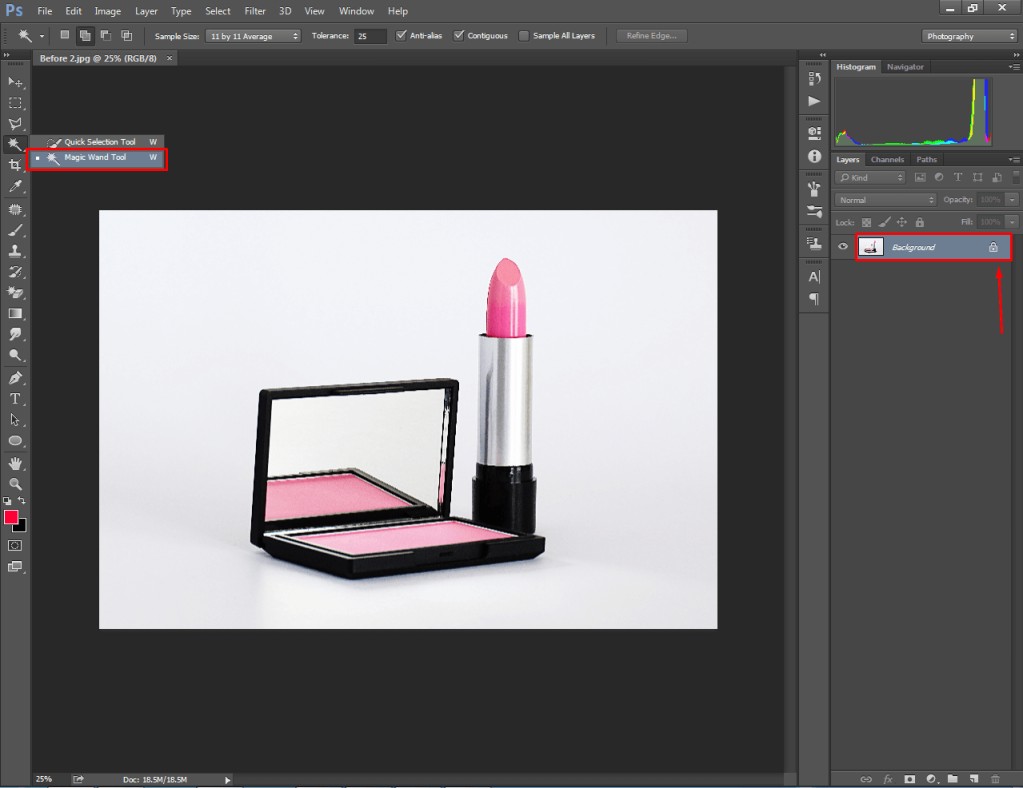
Credit: clippingway.com
Customize Magic Wand Settings
The Magic Wand tool in Photoshop helps select parts of an image fast. You can change its settings to get better results.
Here are key settings you can adjust to improve how the Magic Wand tool works for you.
Adjusting Tolerance
Tolerance controls how similar the colors must be to get selected. A low tolerance picks colors close to the one you click. A high tolerance picks a wider range of colors.
- Low tolerance: selects fewer colors, good for precise areas
- High tolerance: selects more colors, covers larger areas
- Try different values to see what works best for your image
Contiguous Option
The Contiguous option decides if the tool selects pixels next to each other or all similar colors in the image.
| Contiguous On | Selects only touching pixels |
| Contiguous Off | Selects all similar pixels, no matter where |
Sample All Layers
This option lets the Magic Wand tool sample colors from all visible layers. If off, it only samples the active layer.
Use Sample All Layers if:
- You want to select colors from multiple layers at once
- Your image has many layers and you want a full color range
Tips For Effective Selection
The Magic Wand Tool in Photoshop is great for quick selections. It helps you choose areas with similar colors.
Knowing how to use it well can save you time. Let’s look at some tips.
Adjust Tolerance Settings
Tolerance affects how much color difference is allowed. Lower values select fewer colors. Higher values select more.
- Set tolerance to 20 for precise selections.
- Increase to 50 if you need a broader selection.
- Experiment with values to suit your image.
Use The Add To Selection Option
You can add more areas to your selection. This is useful for complex images.
- Press Shift and click to add new areas.
- Ensure the initial selection is active.
- Be careful not to select unwanted areas.
Refine Edge For Better Selections
Refining the edge can improve the quality of your selection. It helps to smooth and feather edges.
Use the ‘Refine Edge’ tool in the options bar. Adjust sliders for better control.
Check Selection With Quick Mask
Quick Mask mode shows your selection clearly. It uses a red overlay to display unselected areas.
Toggle Quick Mask by pressing ‘Q’. This helps in identifying parts that need adjustment.
Troubleshooting Common Issues
The Magic Wand Tool is a popular selection tool in Photoshop. Sometimes, users face problems finding or using it correctly. This guide helps you fix common issues with the Magic Wand Tool.
Read the sections below to understand how to solve problems and improve your workflow with this tool.
Magic Wand Tool Missing From Toolbar
The Magic Wand Tool may seem missing if it is grouped with other selection tools. Look for the Quick Selection Tool icon. Click and hold on it to see the Magic Wand Tool.
Magic Wand Tool Not Selecting Correct Areas
Sometimes, the tool selects too much or too little. This happens because of tolerance settings or selection modes. Adjust these settings to improve accuracy.
- Lower tolerance:Selects colors closer to the clicked pixel.
- Higher tolerance:Selects a wider range of colors.
- Contiguous option:Selects only connected pixels.
- Sample All Layers:Allows selection from all visible layers.
Magic Wand Tool Not Working At All
If the Magic Wand Tool does nothing when you click, check if the layer is locked or hidden. Also, confirm that you are on the correct layer and that the image is not in a mode that restricts editing.
| Issue | Cause | Solution |
| Tool not selecting | Layer locked | Unlock the layer in the Layers panel |
| No selection | Layer hidden | Make the layer visible |
| Tool disabled | Image in Indexed Color Mode | Convert image to RGB Mode |
| Selection wrong | Wrong layer active | Choose the correct layer |
Tool Settings Reset Or Changed
Photoshop may reset tool settings after updates or crashes. Reset the Magic Wand Tool to default to fix unexpected behavior.
- Right-click the Magic Wand Tool icon in the toolbar.
- Select “Reset Tool” from the menu.
- Test the tool again on your image.
Frequently Asked Questions
Where Is The Magic Wand Tool In Photoshop?
The Magic Wand Tool is located in the toolbar on the left side of Photoshop’s interface. It shares a spot with the Quick Selection Tool. Click and hold the icon to reveal and select the Magic Wand Tool.
How To Activate The Magic Wand Tool Quickly?
Press the shortcut key “W” on your keyboard. If the Quick Selection Tool appears instead, press Shift + W to switch to the Magic Wand Tool.
Can I Customize The Magic Wand Tool Settings?
Yes, you can adjust the tolerance level in the options bar at the top. This controls how similar the selected pixels are to the clicked one.
Why Use The Magic Wand Tool In Photoshop?
The Magic Wand Tool helps select areas of similar color quickly. It’s ideal for removing backgrounds or selecting objects with uniform colors.
Conclusion
Finding the Magic Wand Tool in Photoshop is simple and quick. It helps select areas of your image with ease. Just look for the icon that looks like a wand. Practice using it to improve your editing skills. This tool saves time and makes tasks easier.
Remember to adjust its settings for better results. Keep exploring Photoshop to discover more useful tools. Your editing will get smoother with each try. Enjoy creating your best images with confidence.