

Have you ever typed a message only to see your words suddenly change to something you didn’t mean? Auto correct can be helpful, but it can also be frustrating when it changes your text in the wrong way.
If you’re tired of constant corrections that don’t make sense, you’re in the right place. This guide will show you exactly how to remove auto correct from your device, so you can type freely and confidently. Keep reading to take control of your typing experience and say goodbye to unwanted changes forever.
Why Turn Off Auto Correct
Auto correct helps fix typing mistakes automatically. It works by guessing what you meant to type.
Sometimes, auto correct changes words wrongly. This can cause confusion or errors in your writing.
Common Auto Correct Issues
Auto correct can change words you did not want to change. It may replace slang, names, or technical terms with wrong words.
- Misspelling of proper nouns
- Replacing slang with formal words
- Changing technical terms incorrectly
- Inserting wrong words that change meaning
When Auto Correct Causes More Problems
Auto correct may create more errors than it fixes. It can cause misunderstandings in important messages or documents.
| Problem | Effect |
| Wrong word inserted | Changes the meaning of sentences |
| Names misspelled | Causes confusion about who is meant |
| Technical terms altered | Makes instructions unclear |
| Slang replaced | Sounds unnatural or incorrect |
Credit: learn.microsoft.com
Disabling Auto Correct On Iphone
Auto correct can change your words without asking. This may cause mistakes in messages. You can turn off this feature on your iPhone.
Disabling auto correct lets you type freely. Learn how to access the right settings and switch off auto correct.
Accessing Keyboard Settings
First, open the Settings app on your iPhone. Then, scroll down and find “General.” Tap on it to see more options.
- Open Settings from the home screen.
- Tap on “General.”
- Select “Keyboard” from the list.
- Now you are in the keyboard settings.
Turning Off Auto Correct Feature
Inside the keyboard settings, look for “Auto-Correction.” This option controls the auto correct feature on your iPhone. You can disable it here.
| Action | Description |
| Find “Auto-Correction” | It is a toggle switch in the keyboard settings. |
| Turn the switch off | Slide the toggle to disable auto correct. |
| Test your keyboard | Open any app and try typing. Auto correct will be off. |
Turning Off Auto Correct On Android
Auto correct can change your words without asking. This can be annoying at times. You can turn it off on your Android phone.
Each Android device may have different settings. You will learn how to find and disable auto correct easily.
Opening Language And Input Settings
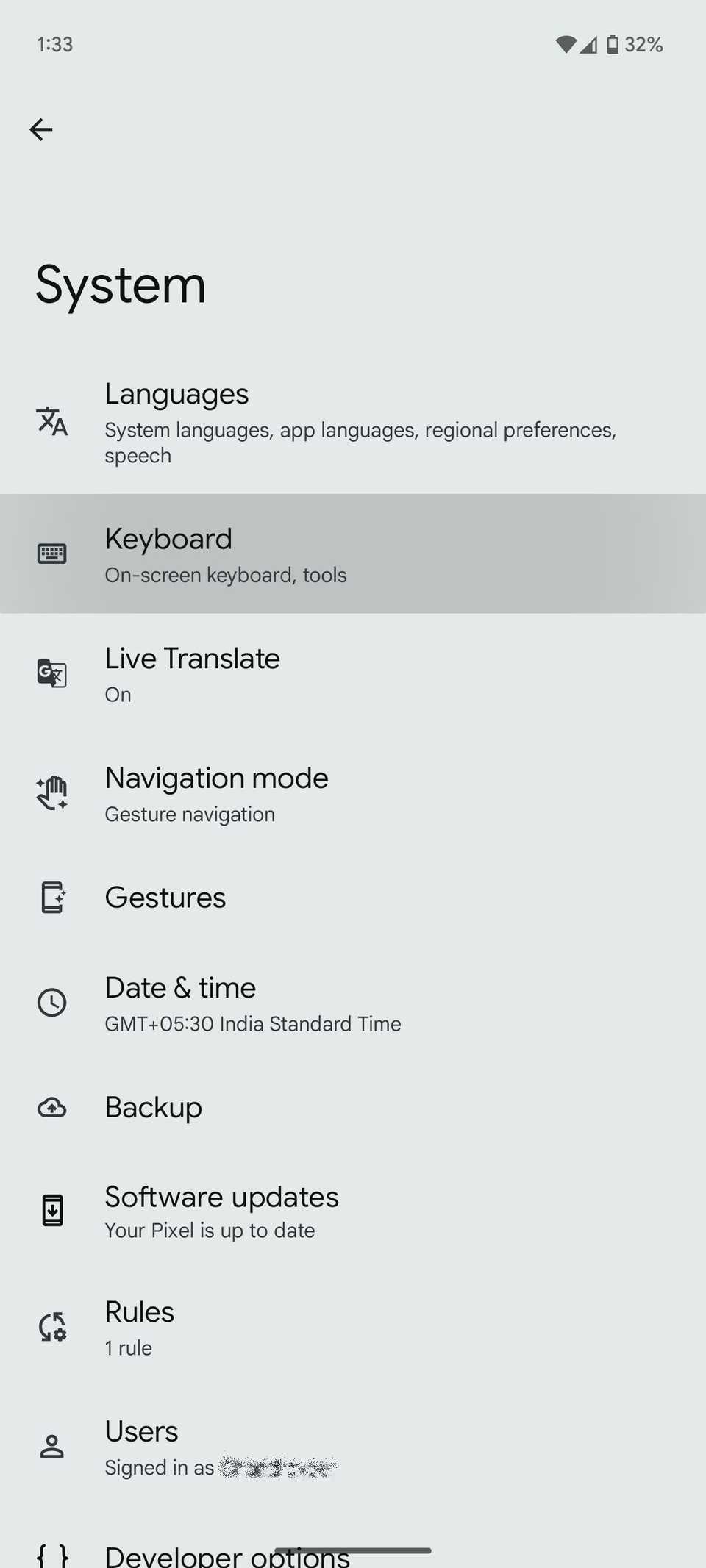
First, open the Settings app on your phone. Look for the section called “Language & input” or “System”.
- Tap on “Settings”.
- Scroll down and select “System” or directly “Language & input”.
- Find “Virtual keyboard” or “On-screen keyboard”.
- Choose your keyboard from the list.
Disabling Auto Correct On Various Keyboards
Different keyboards have different ways to turn off auto correct. Below is a table with popular keyboards and their auto correct settings.
| Keyboard | How to Turn Off Auto Correct |
|---|---|
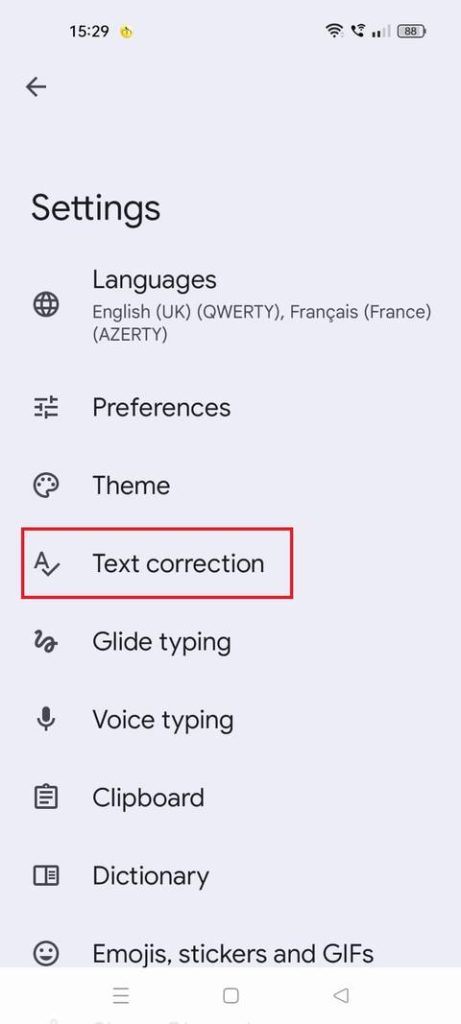
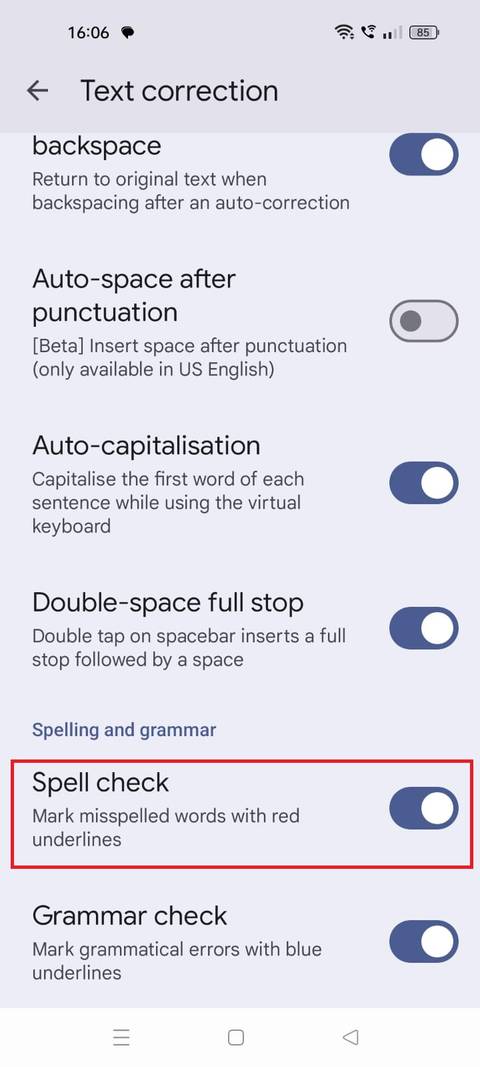
| Gboard (Google Keyboard) | Go to Settings > Text correction > Turn off “Auto-correction”. |
| Samsung Keyboard | Open Settings > Smart typing > Disable “Predictive text”. |
| SwiftKey | Open Settings > Typing > Typing > Turn off “Auto correct”. |
| Others | Check keyboard settings under Language & input and find auto correct options. |
Credit: www.androidpolice.com
Removing Auto Correct On Windows
Auto correct can change your words without asking. This can cause mistakes in your writing.
You can turn off auto correct on Windows to stop unwanted changes. This guide shows you how.
Adjusting Typing Settings
Windows has typing settings that control auto correct. You can change these settings to disable it.
Follow these steps to adjust typing settings:
- Open the Start menu and select Settings.
- Go to Devices and then click on Typing.
- Find the option called “Autocorrect misspelled words.”
- Turn this option off to stop auto correct.
- You can also turn off “Highlight misspelled words” if you want.
Disabling Auto Correct In Microsoft Word
Microsoft Word has its own auto correct feature. You can disable it inside Word settings.
Here is how to turn off auto correct in Microsoft Word:
- Open Microsoft Word and click on File.
- Select Options to open the Word Options window.
- Click on Proofing in the left menu.
- Press the AutoCorrect Options button.
- In the AutoCorrect tab, uncheck “Replace text as you type.”
- Click OK to save your changes.
Disabling Auto Correct On Mac
Auto correct can fix typing mistakes on your Mac. Sometimes, it changes words you do not want fixed. You can turn off auto correct to stop this from happening.
Disabling auto correct helps when you write special words or names. It gives you full control over what you type.
Changing Keyboard Preferences
You can stop auto correct by changing your Mac’s keyboard settings. This change applies to all apps that use the system keyboard.
Follow these simple steps to change your keyboard preferences:
- Click the Apple menu and select “System Preferences.”
- Choose “Keyboard” from the options.
- Go to the “Text” tab.
- Uncheck the box labeled “Correct spelling automatically.”
Turning Off Auto Correct In Text Editors
Some text editors have their own auto correct settings. You can turn off auto correct inside these apps separately.
Here is how you can disable auto correct in common text editors:
- Open the text editor’s preferences or settings menu.
- Find the spelling or typing section.
- Turn off options like “Auto Correct” or “Spell Check while typing.”
Credit: www.androidpolice.com
Tips For Managing Typos Without Auto Correct
Auto correct can sometimes change words to things we do not mean. It is helpful to manage typos without relying on it.
Here are some tips to help you manage and reduce typos in your writing. These methods are simple and effective.
Using Spell Check Tools
Spell check tools can identify most spelling errors. They are available in word processors and online.
- Use spell check in your word processor before finalizing documents.
- Try online spell check websites for additional support.
- Consider browser extensions that check spelling as you type.
Proofreading Strategies
Proofreading helps catch mistakes auto correct might miss. It requires a little time but is very effective.
| Strategy | Description |
| Read Aloud | Helps to hear errors you might not see. |
| Take Breaks | Rest your eyes before proofreading again. |
| Use a Ruler | Focus on one line at a time. |
Frequently Asked Questions
How Do I Turn Off Autocorrect On My Iphone?
Go to Settings > General > Keyboard. Toggle off “Auto-Correction” to disable it. This stops automatic word changes while typing.
Can I Remove Autocorrect On Android Devices?
Yes, open Settings > System > Languages & input > Virtual keyboard. Select your keyboard and disable autocorrect in text correction options.
Does Disabling Autocorrect Affect Typing Speed?
Disabling autocorrect may slow typing initially. You must manually correct errors, but it improves typing accuracy over time.
Is It Possible To Remove Autocorrect On Windows?
Yes, go to Settings > Devices > Typing. Turn off “Autocorrect misspelled words” to disable autocorrect on Windows.
Conclusion
Turning off auto-correct can make typing easier for many users. You control your words and avoid unwanted changes. It takes only a few steps on most devices. Just follow the simple instructions shared here. This way, you type exactly what you want.
No more surprises or wrong corrections. Experiment with settings to find what fits you best. Enjoy a smoother, more natural typing experience every day.