

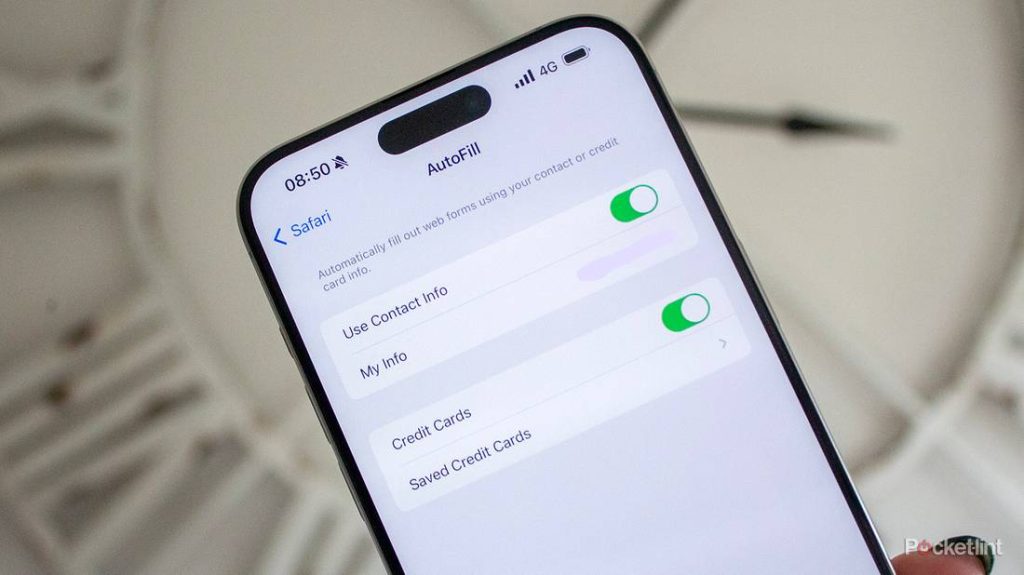
Is your saved card information popping up when you don’t want it to? Removing your card from auto fill can seem tricky, but it doesn’t have to be.
You deserve control over your personal data and payment details, and this guide will show you exactly how to take it back—step by simple step. By the end, you’ll feel confident managing your auto fill settings and keeping your information safe.
Ready to stop those unwanted suggestions? Let’s dive in.
Access Autofill Settings
Autofill saves your card details for quick checkout. Sometimes, you may want to remove a saved card.
To do this, you first need to access the autofill settings in your browser. This guide helps you find those settings.
Open Browser Preferences
Start by opening your browser. Then, find the preferences or settings menu.
This menu is usually in the top-right corner, shown by three dots or lines. Click it to open the list.
- Click the menu icon in your browser
- Select “Settings” or “Preferences” from the list
- Wait for the settings page to load
Navigate To Autofill Section
Inside settings, look for the autofill section. This holds your saved cards and addresses.
In this section, you can see all saved payment methods and choose which cards to remove.
- Find and click “Autofill” or “Payment Methods”
- Review the list of saved cards
- Select the card you want to delete
- Click “Remove” or “Delete” to erase the card
Manage Saved Payment Methods
Auto fill saves your payment card details for quick checkout. Managing these saved cards helps keep your information secure.
You can view all stored cards and remove those you no longer use or trust. This guide shows how to manage your saved payment methods easily.
View Stored Cards
To see your saved payment cards, open your browser or device settings. Look for the section named “Payment Methods” or “Auto Fill.”
- Open browser or device settings.
- Find “Auto Fill” or “Payment Methods.”
- Click to view saved cards.
- Check card details like number and expiration date.
Select Card To Remove
After viewing your cards, choose the one you want to delete. Removing unused cards protects your data and prevents mistakes during checkout.
| Action | Description |
| Find the card | Scroll through the list to locate the card to remove. |
| Select the card | Click or tap on the card details. |
| Choose remove or delete | Confirm removal to delete the card from auto fill. |
Delete Card From Autofill
Auto fill saves your card details for quick payments. Sometimes, you may want to remove these cards. This guide shows how to delete your card from autofill settings.
Removing a card helps protect your information. It also keeps your browser clean from old data.
Remove Card Details
Open your browser settings and find the autofill or payment section. Locate the saved cards or payment methods list.
Select the card you want to delete. Click the option to remove or delete the card details.
- Go to browser settings
- Find autofill or payment info
- Choose saved cards
- Select the card to delete
- Click delete or remove
Confirm Deletion
After clicking delete, the browser will ask you to confirm. This step prevents accidental removal.
Confirm the deletion to remove the card from autofill. The card will no longer appear in payment suggestions.
- Review the confirmation message
- Click confirm or yes
- Check that the card is removed
Credit: www.iphonelife.com
Clear Autofill Data On Mobile
Autofill saves time by remembering your card details. Sometimes, you want to remove a saved card. This guide shows how to clear autofill data on mobile devices.
Follow the instructions for your device to remove card information from autofill settings.
Ios Device Steps
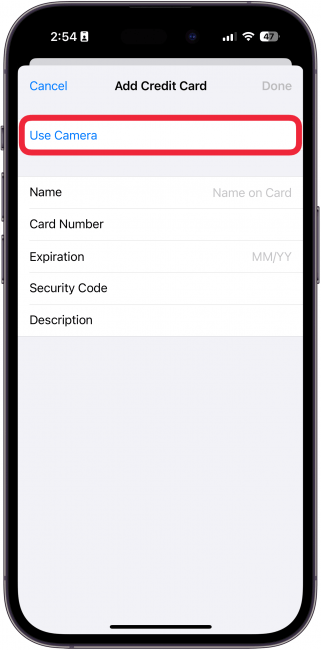
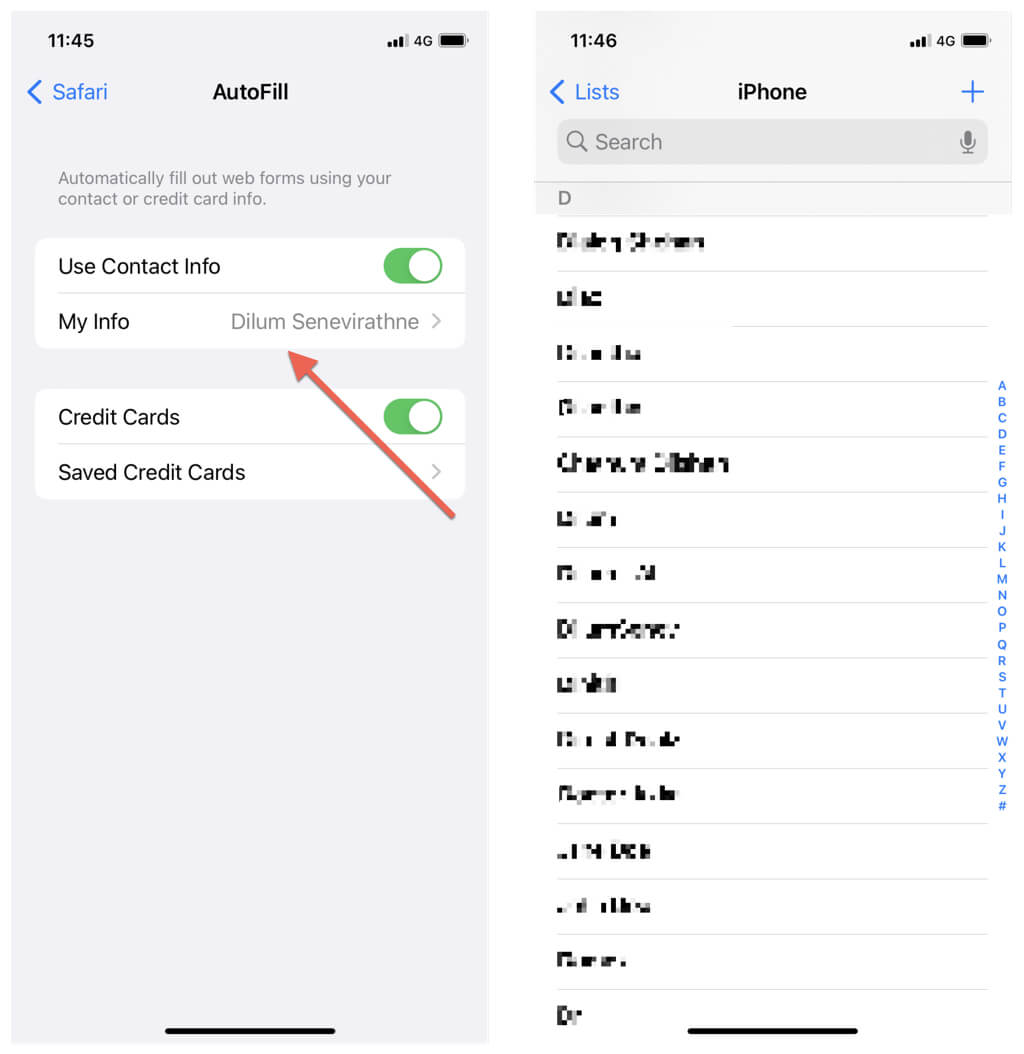
On iOS devices, autofill data is stored in Safari settings. You can delete saved cards easily.
- Open the Settingsapp on your iPhone or iPad.
- Scroll down and tap Safari.
- Tap Autofill.
- Choose Saved Credit Cards. You may need to use Face ID or enter your passcode.
- Swipe left on the card you want to remove.
- Tap Deleteto remove the card from autofill.
- Close Settings when done.
Android Device Steps
On Android, autofill data is managed through Google settings or browser settings.
| Action | Instructions |
|---|---|
| Clear saved cards in Google Autofill | Open Settings. Tap Google> Autofill> Payment methods. Select the card to remove and tap Remove. |
| Clear saved cards in Chrome | Open Chromeapp. Tap the three dots > Settings> Payment methods and addresses. Tap the card you want to delete, then tap Delete. |
Prevent Future Autofill Saves
Autofill saves your card details to fill forms quickly. Sometimes, you want to stop your browser from saving these details.
This guide shows easy ways to prevent your browser from saving card information in the future.
Disable Autofill For Cards
Disabling autofill for cards stops your browser from asking to save your card details. You can turn off this option in your browser settings.
- Open your browser’s settings menu.
- Find the autofill or payment methods section.
- Turn off the option to save or autofill card details.
- Restart your browser to apply changes.
Manage Browser Permissions
Some browsers ask for permission to save card info. You can manage these permissions to control autofill behavior.
| Browser | Permission Setting | How to Change |
|---|---|---|
| Google Chrome | Autofill and Payments | Settings > Autofill > Payment methods |
| Mozilla Firefox | Saved Addresses & Credit Cards | Options > Privacy & Security > Forms and Autofill |
| Microsoft Edge | Payment Info | Settings > Profiles > Payment info |
Credit: www.switchingtomac.com
Troubleshoot Autofill Issues
Autofill can be helpful, but sometimes it causes problems. Removing a card from autofill might solve these issues.
Here are some ways to troubleshoot autofill issues and ensure your card details are secure.
Sync And Account Settings
Check your sync and account settings first. Sometimes, these settings might cause autofill problems.
Ensure your device is synced correctly. This can prevent outdated card details from appearing.
- Open your browser settings.
- Find the sync and account options.
- Verify that sync is active.
- Check if your account details are correct.
Clear Cache And Cookies
Clearing cache and cookies can help refresh your browser’s memory. This might resolve autofill issues.
When you clear these, it can remove outdated data that might be causing problems.
- Open your browser settings.
- Go to privacy or history options.
- Choose the option to clear cache and cookies.
- Restart your browser.

Credit: www.youtube.com
Frequently Asked Questions
How Do I Remove A Saved Card From Autofill?
To remove a saved card, open your browser’s settings. Go to autofill or payment methods. Find the card and select “Remove” or “Delete. ” This stops the card from auto-filling on websites.
Can I Delete Multiple Cards From Autofill At Once?
Most browsers require deleting cards one by one. However, some allow managing payment methods in bulk via settings or extensions. Check your browser’s payment or autofill section for batch options.
Why Should I Remove Old Cards From Autofill?
Removing old cards protects your financial data from unauthorized use. It also prevents accidental use of expired or inactive cards during online purchases. Keeping autofill updated improves security and convenience.
Does Removing A Card Affect Saved Passwords?
No, removing a card from autofill does not affect saved passwords. Payment info and passwords are stored separately in your browser’s settings. You can manage each independently.
Conclusion
Removing your card from auto fill keeps your information safe and private. It takes just a few quick steps on your device or browser. Regularly checking and updating your saved cards helps avoid unwanted charges. Stay in control of your payment details with simple actions.
Now you can shop online with more confidence and peace of mind. Keep your data secure by managing auto fill settings often. Easy to do, and worth the effort.