


Have you ever taken a quick screenshot using the Snipping Tool and then wondered, “Where did my file go?” It’s frustrating when you capture something important but can’t find it afterward. If you’ve been searching for your snips or want to know exactly where they’re saved, you’re in the right place.
This article will clear up the mystery and help you locate your files easily every time. Keep reading—you’ll never lose a snip again!
Credit: learn.microsoft.com
Default Save Location
The Snipping Tool in Windows saves screenshots automatically. Knowing where it saves files helps you find your images quickly.
By default, the Snipping Tool stores screenshots in a specific folder on your computer. This folder can be accessed easily using Windows Explorer.
Screenshots Folder Path
The default folder where the Snipping Tool saves files is inside the Pictures library. This folder is named “Screenshots”.
- Open the Pictures folder on your PC.
- Look for the “Screenshots” folder inside Pictures.
- All snipped images are saved here as PNG files.
Accessing The Folder On Windows
You can reach the Screenshots folder easily by using File Explorer or the Run command.
- Press Windows key + E to open File Explorer.
- Click on “Pictures” in the left sidebar.
- Double-click the “Screenshots” folder to open it.
You can also open the folder by typing this path in the Run dialog (Windows key + R):
%UserProfile%\Pictures\ScreenshotsSaving Files Manually
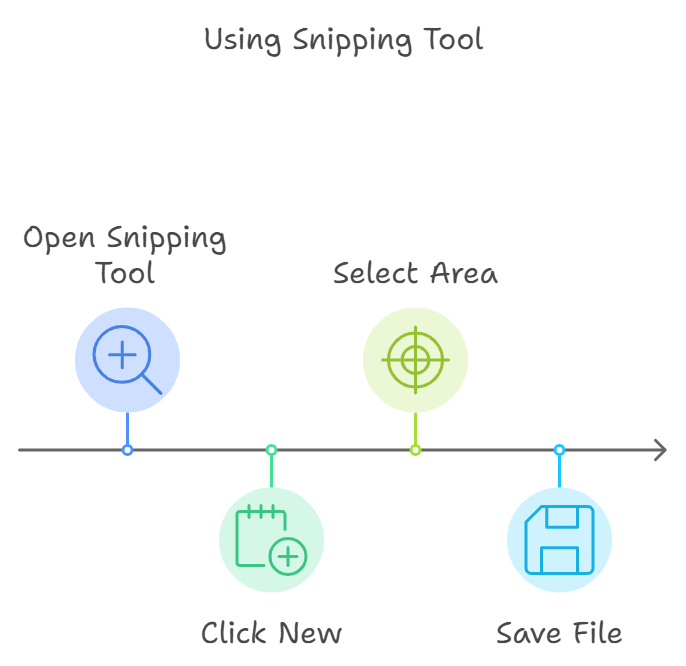
The Snipping Tool lets you capture parts of your screen. You can save these images by choosing where to keep them.
Saving files manually gives you control over the folder and file name. This helps you find your snips later.
Choosing Save Location
After you take a snip, click the save button. A window will open asking where to save your file.
You can select any folder on your computer. Pick a place that is easy to remember and access.
- Desktop for quick access
- Pictures folder for images
- Custom folders for organized storage
File Naming Tips
Give your snip a clear name when saving. This helps you know what the file contains later.
Use simple words and dates to keep names unique and easy to find.
- Include the date like “2024-06-01”
- Add a short description like “meeting-notes”
- Use numbers if you have many files
Locating Unsaved Snips
The Snipping Tool lets you capture parts of your screen. Sometimes, you may not save the snip right away. Knowing where to find these unsaved snips helps you avoid losing them.
This guide explains how to find unsaved snips using the clipboard and how to use them in other apps.
Using Clipboard
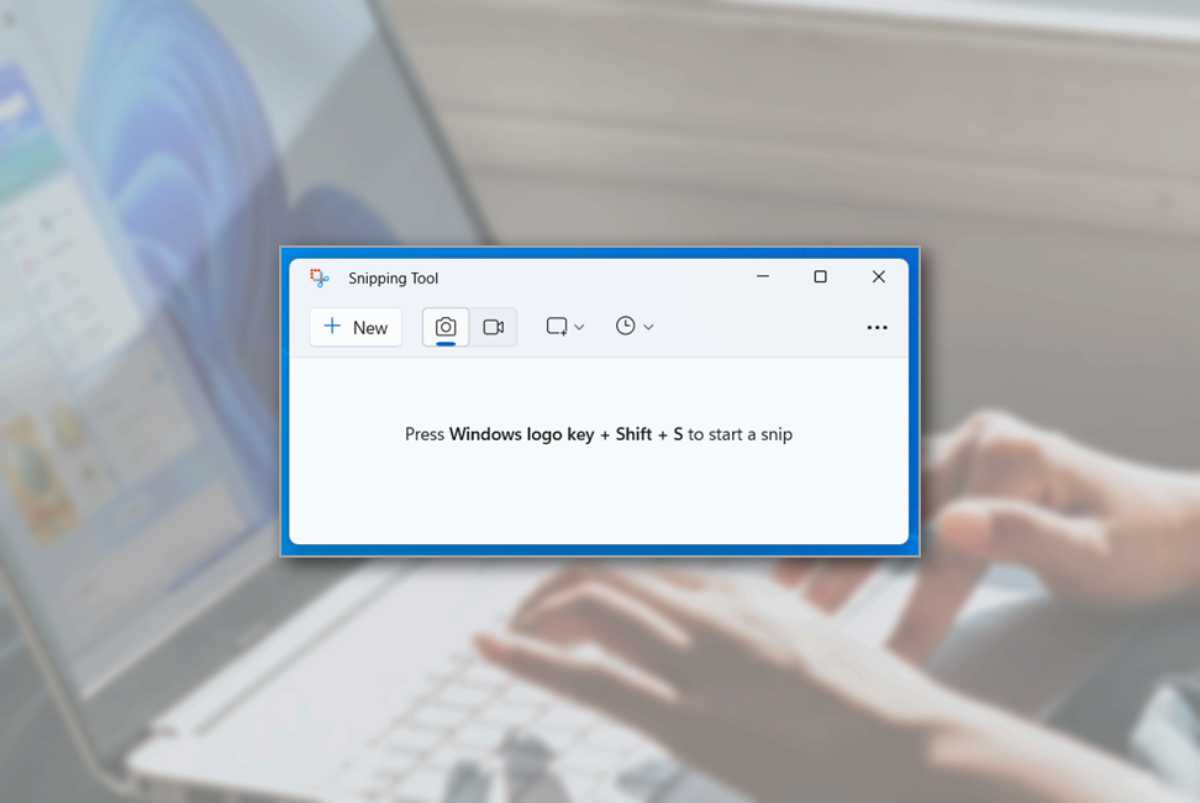
When you take a snip, it is copied to your clipboard. This means the image is stored temporarily in your computer’s memory. You can access this snip before saving it.
The clipboard holds only one item at a time. If you copy something else, the snip will be replaced. To keep your snip, you should paste it somewhere or save it quickly.
Pasting Snips Into Other Apps
You can paste the snip from the clipboard into many programs. This helps you save or edit the image without opening the Snipping Tool again.
Here are some common apps where you can paste your snip:
- Microsoft Word
- Paint or Paint 3D
- Microsoft PowerPoint
- Email clients like Outlook
- Image editors like Photoshop
Credit: medium.com
Changing Default Save Settings
The Snipping Tool saves files automatically, but you can change where it saves. Adjusting save settings helps you find screenshots faster.
By default, the Snipping Tool saves files in a standard folder. You can change this to a folder you prefer.
Adjusting Snipping Tool Options
Open the Snipping Tool and look for settings or options. You can set a new default save location there.
Changing this folder helps you organize your screenshots. Pick a folder on your desktop or documents for easy access.
- Open Snipping Tool
- Go to Settings or Options
- Find default save location
- Select your preferred folder
- Save changes
Using Third-party Apps
Third-party screenshot apps offer more save options than the Snipping Tool. You can choose where and how to save files.
Some apps let you save screenshots to cloud storage or custom folders automatically. This can save time and keep files organized.
- Choose an app with save location settings
- Set your preferred folder or cloud service
- Use the app for screenshots
- Check saved files in your chosen folder
Troubleshooting Missing Screenshots
Sometimes the screenshots you take with the Snipping Tool seem to disappear. It can be confusing if you don’t know where the files are saved. This guide helps you find your missing screenshots.
We will cover ways to check recent files, search by file type, and use recovery tools. These steps will help you locate your screenshots quickly.
Checking Recent Files
Look in your computer’s recent files list. Screenshots taken with the Snipping Tool often appear there first. This is a quick way to find your missing images.
Open File Explorer and click on “Recent files” or “Quick Access.” Check if your screenshots are listed there.
- Press Windows + E to open File Explorer
- Click “Quick Access” on the left menu
- Look for files named “Snip” or similar
Searching By File Type
Screenshots usually save as PNG or JPG files. You can search your computer for these file types to find your snips.
Use the search bar in File Explorer. Type “.png” or “.jpg” to see all images of that type. Look for files with names like “Snip” or the date you took the screenshot.
- Open File Explorer
- Click on the search box in the top right
- Type “.png” or “.jpg” and press Enter
- Sort results by date to find recent screenshots
Using File Recovery Tools
If your screenshots are deleted or lost, file recovery tools can help. These tools scan your hard drive for deleted files and may restore your snips.
Many recovery tools are free or have trial versions. Use them carefully and follow the instructions for the best results.
- Download a trusted file recovery tool
- Scan the drive where screenshots were saved
- Look for PNG or JPG files
- Restore the files you need
Credit: www.technobaboy.com
Frequently Asked Questions
Where Does Snipping Tool Save Screenshots By Default?
By default, Snipping Tool does not auto-save files. You must manually choose the save location after capturing a screenshot. If you save, the image usually goes to the folder you select, commonly the Pictures or Desktop folder.
Can I Change The Default Snipping Tool Save Location?
Snipping Tool itself does not have a setting to change the default save location. You select the destination folder each time you save a snip manually. For automatic saving, consider using Snip & Sketch or third-party tools.
How To Find Snipping Tool Screenshots If Not Saved?
If you don’t save a snip, it only stays in the clipboard temporarily. You can paste it into apps like Paint or Word. Without saving, Snipping Tool doesn’t store images on your computer.
Does Snipping Tool Save Files In A Specific Format?
Snipping Tool allows saving screenshots in formats like PNG, JPEG, or GIF. You choose the format when saving the file manually. PNG is the most common default format due to its quality and compression.
Conclusion
The Snipping Tool saves files where you choose to keep them. Usually, it asks you to pick a folder before saving. If you don’t select a location, it might save the file to the Pictures folder or Desktop. Knowing this helps you find your screenshots fast.
Try saving files in easy-to-find folders for quick access. This way, you avoid losing or searching for important images later. Remember, saving your work properly makes sharing and using screenshots simple. Keep this in mind each time you use the Snipping Tool.